 Infolab wiki
|
Size: 722
Comment:
|
Size: 1154
Comment:
|
| Deletions are marked like this. | Additions are marked like this. |
| Line 5: | Line 5: |
| 1. Download the client | '''1)''' Download the OpenVPN client. Download the client here from here: http://openvpn.net/index.php/open-source/downloads.html. Direct link: http://swupdate.openvpn.org/community/releases/openvpn-install-2.3.1-I001-x86_64.exe. |
| Line 7: | Line 7: |
| Download the client here from here: http://openvpn.net/index.php/open-source/downloads.html Direct link: http://swupdate.openvpn.org/community/releases/openvpn-install-2.3.1-I001-x86_64.exe |
{{attachment:01.png}} |
| Line 10: | Line 9: |
| [[01.png]] | '''2)''' Run the OpenVPN installer. |
| Line 12: | Line 11: |
| 2. Run the installer | '''3)''' Choose the default selection of components when asked. |
| Line 14: | Line 13: |
| 3. Select the default components | {{attachment:03.png}} |
| Line 16: | Line 15: |
| [[03.png]] | '''4)''' Allow the installation of all the drivers the installation wizard wants to install. |
| Line 18: | Line 17: |
| 4. Install the drivers the installer asks for | {{attachment:04.png}} |
| Line 20: | Line 19: |
| [[04.png]] | '''5)''' If you have not done this already this would be a great time to unzip the file containing your certificate and the connection configuration. Use the file named ''USERNAME_win.zip''. |
| Line 22: | Line 21: |
| 5. Run the StartOpenVPN.bat | |
| Line 24: | Line 22: |
| 6. Agree to run the connection with the Administrative privileges | '''6)''' Run the StartOpenVPN.bat contained among the extracted files. |
| Line 26: | Line 24: |
| [[05.png]] | '''7)''' Agree to run the command with the Administrative privileges. |
| Line 28: | Line 26: |
| 7. The connection should now be running. Please leave the command prompt window open. | {{attachment:05.png}} |
| Line 30: | Line 28: |
| [[06.png]] | '''8)''' The connection should now be running. Please leave the command prompt window open to stay connected. |
| Line 32: | Line 30: |
| 8. If you want to terminate the connection, switch back to the command prompt and press F4. | {{attachment:06.png}} '''9)''' If you want to terminate the connection switch back to the command prompt and press F4. |
Quick howto
Windows 7, 64 bit
1) Download the OpenVPN client. Download the client here from here: http://openvpn.net/index.php/open-source/downloads.html. Direct link: http://swupdate.openvpn.org/community/releases/openvpn-install-2.3.1-I001-x86_64.exe.
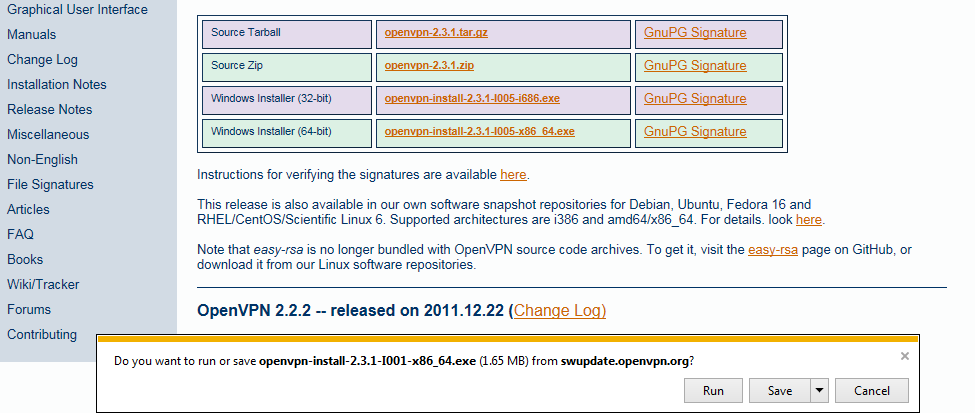
2) Run the OpenVPN installer.
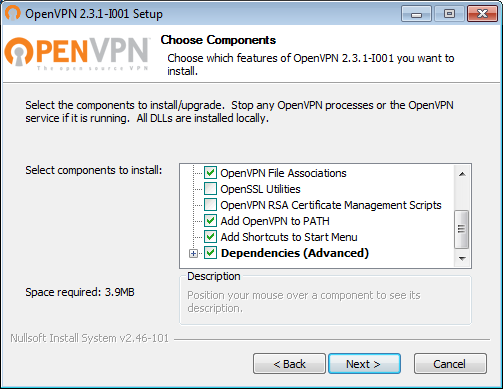
3) Choose the default selection of components when asked.
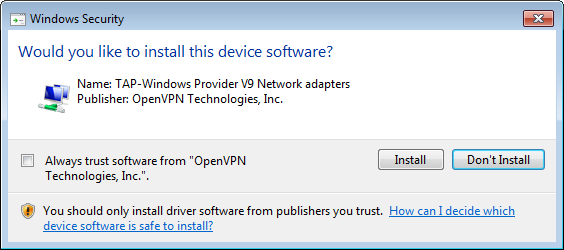
4) Allow the installation of all the drivers the installation wizard wants to install.
5) If you have not done this already this would be a great time to unzip the file containing your certificate and the connection configuration. Use the file named USERNAME_win.zip.
6) Run the StartOpenVPN.bat contained among the extracted files.
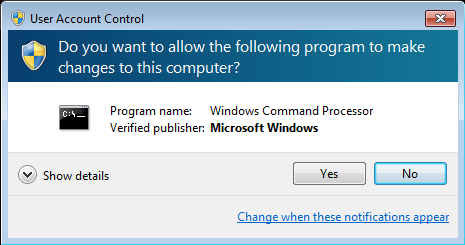
7) Agree to run the command with the Administrative privileges.
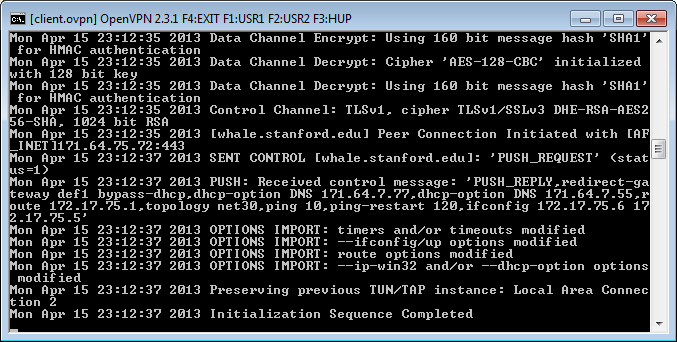
8) The connection should now be running. Please leave the command prompt window open to stay connected.
9) If you want to terminate the connection switch back to the command prompt and press F4.